
# Quickstart with AI assistance
In this quickstart we will learn how to use Ontopic Suite AI-assisted mapping generator to automatically propose class and property mapping entries.
Early release
The AI-assisted mapping generator is available starting from 2026.2.0-beta-1.
# 8 Steps to get you going
- Create a new project
- Import the ontology
- Enable AI-assisted mapping generator
- Create lenses from the database tables
- Map data to classes and properties
- Query the Knowledge Graph using SPARQL
- Materialize data into a graph database
- Query the Knowledge Graph using SQL
# Create a new project
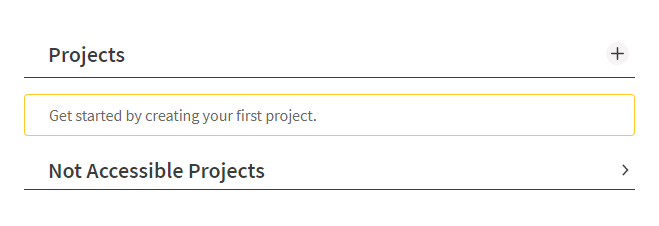
The first step is to create a new project by clicking on the + icon or the text Get started by creating your first project.
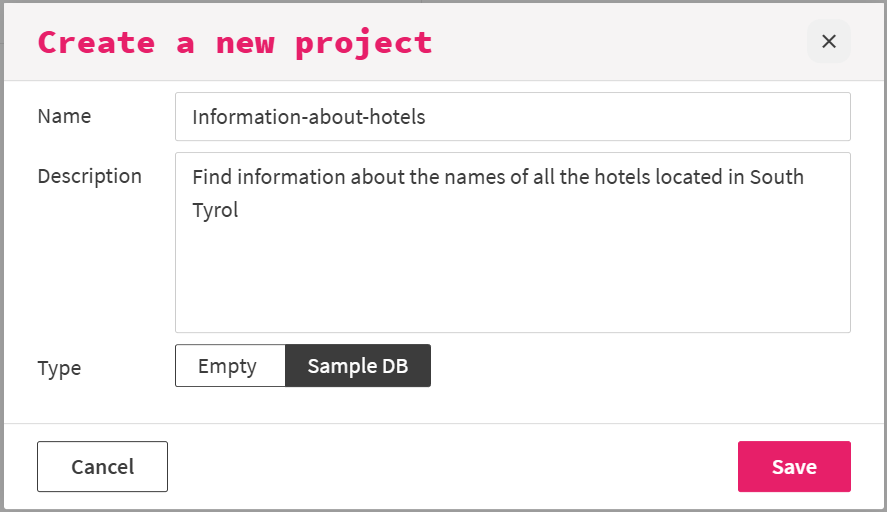
Give your project a name and add a description relevant to the project. Choose Sample DB as project type, so your new project connects to the existing sample database and click on Save.
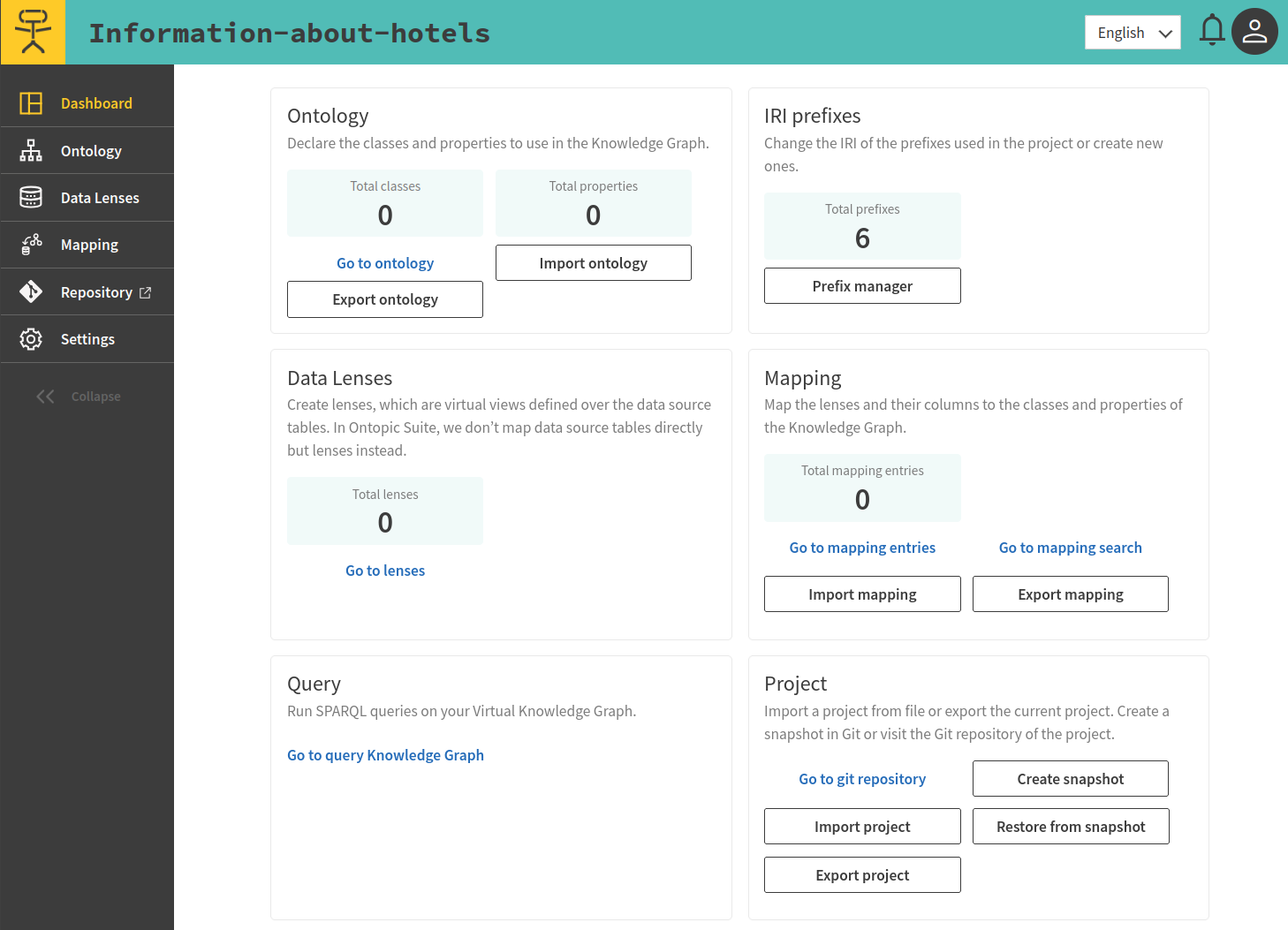
After saving, you will automatically land on the dashboard of the newly created project.
# Import the ontology
- Save the following ontology in a .ttl file.
- Click on Import ontology from the home page to import the already saved ontology. As you can notice, the Turtle ontology format is automatically recognized.
# Enable AI
- Go to Settings > AI Configuration.
- Click on the button near Enable AI to enable the AI-assisted mapping generator.

- Select your preferred LLM model from the drop-down menu.

# List of database tables
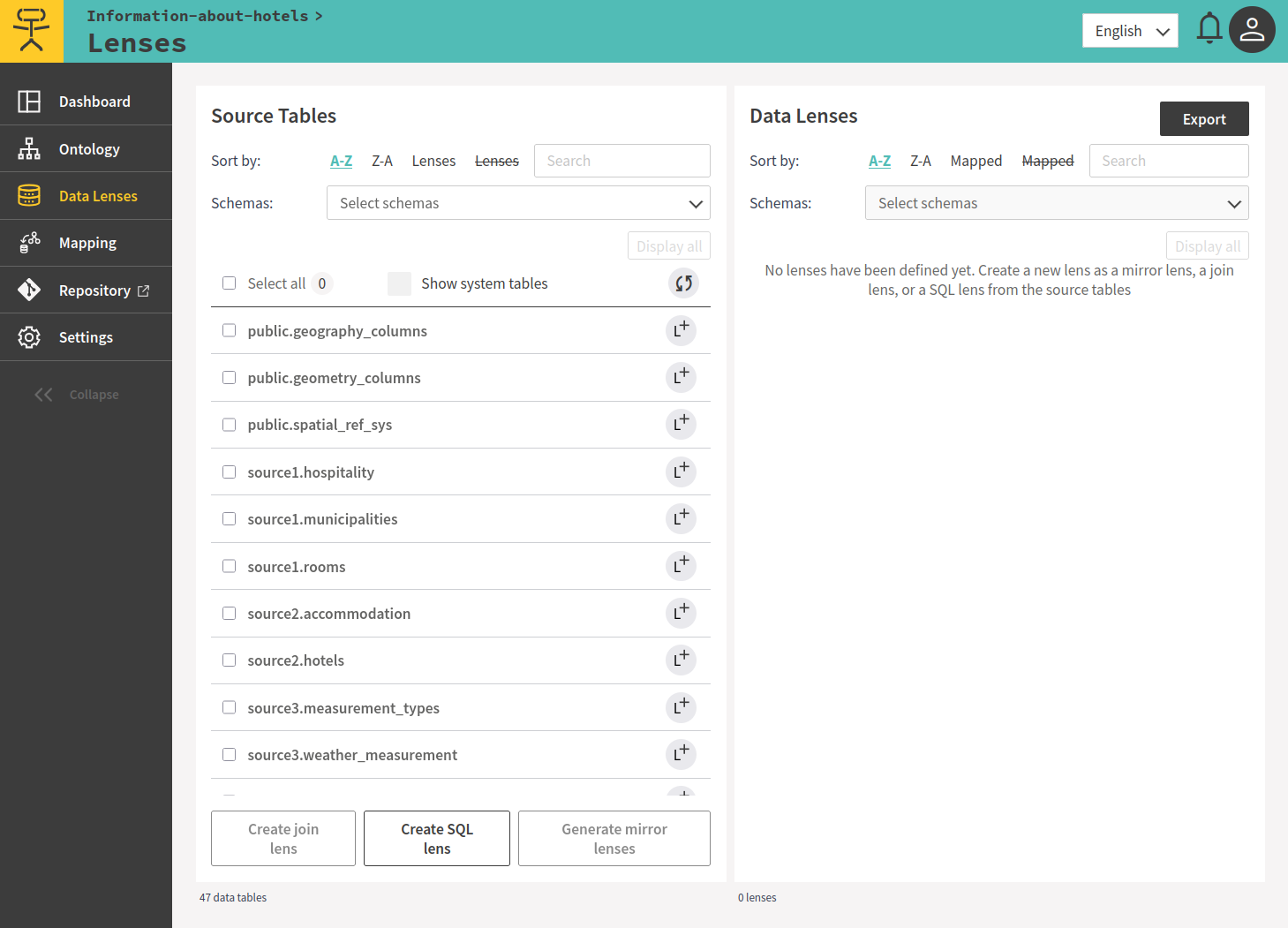
Having chosen a Sample DB as project type, the database connection is already set up, and you can see the list of tables by selecting the Data Lenses tab on the left-side navigation menu
# What we want to build
Our goal is to build a Knowledge Graph giving us information about all the lodging businesses in South Tyrol.
For our tutorial, we will be using the following two tables for the sake of simplicity:
- source1.municipalities
- source1.hospitality
# Creating lenses
Select Data Lenses from the left-side navigation menu to get a list of all tables
Select the two tables source1.hospitality and source1.municipalities, by checking the checkboxes and clicking Generate mirror lens on the bottom of the page.
Note: If you are using the Windows Desktop version select DESTINATION-DB.source1.hospitality and DESTINATION-DB.source1.municipalities .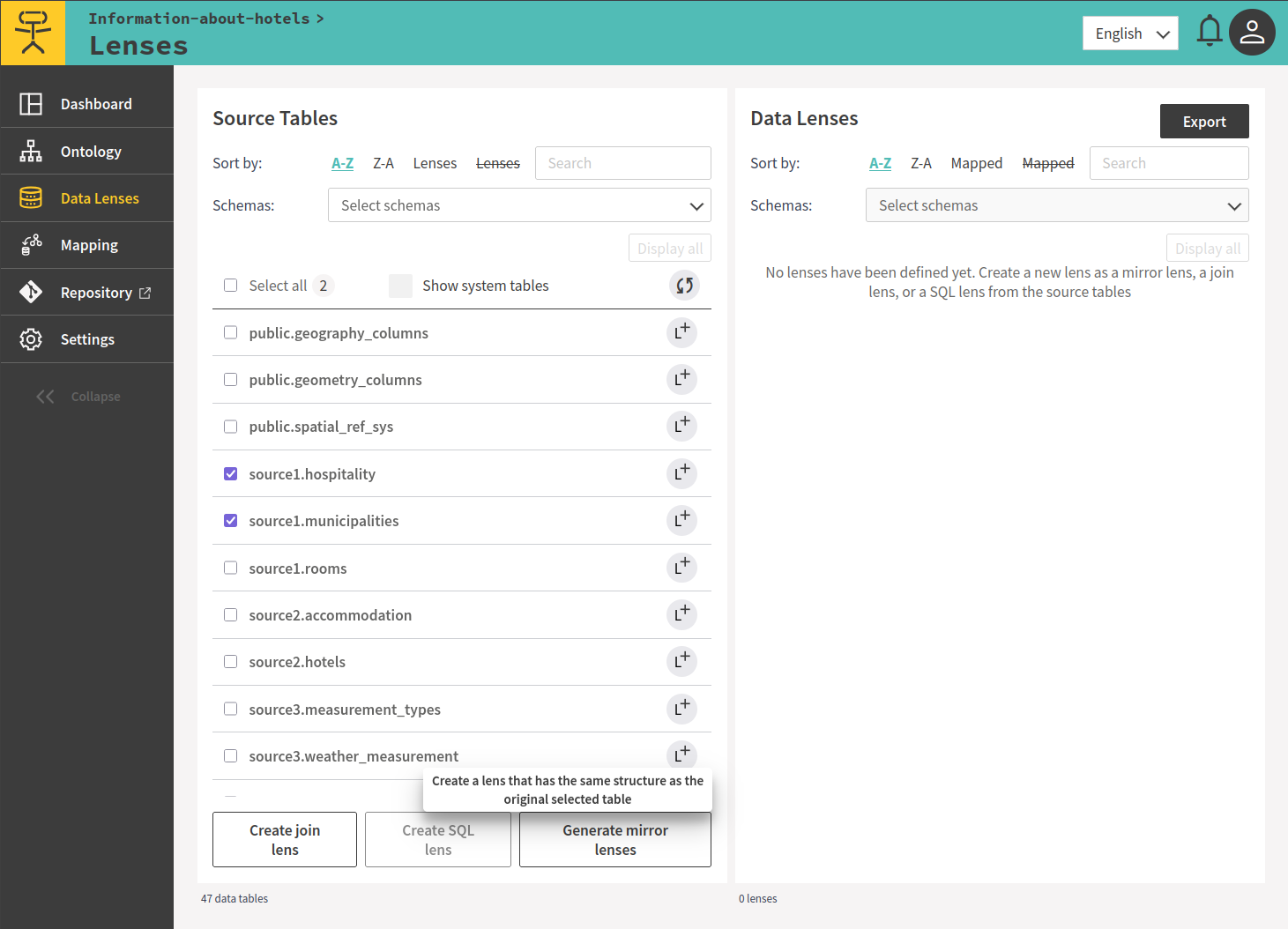
# Mapping data from the database to a Knowledge Graph
# Start populating your Graph (Mapping a lens to a class)
# Map municipalities to a class
Select Mapping from the left-side navigation menu and select the lens lenses.source1.municipalities.
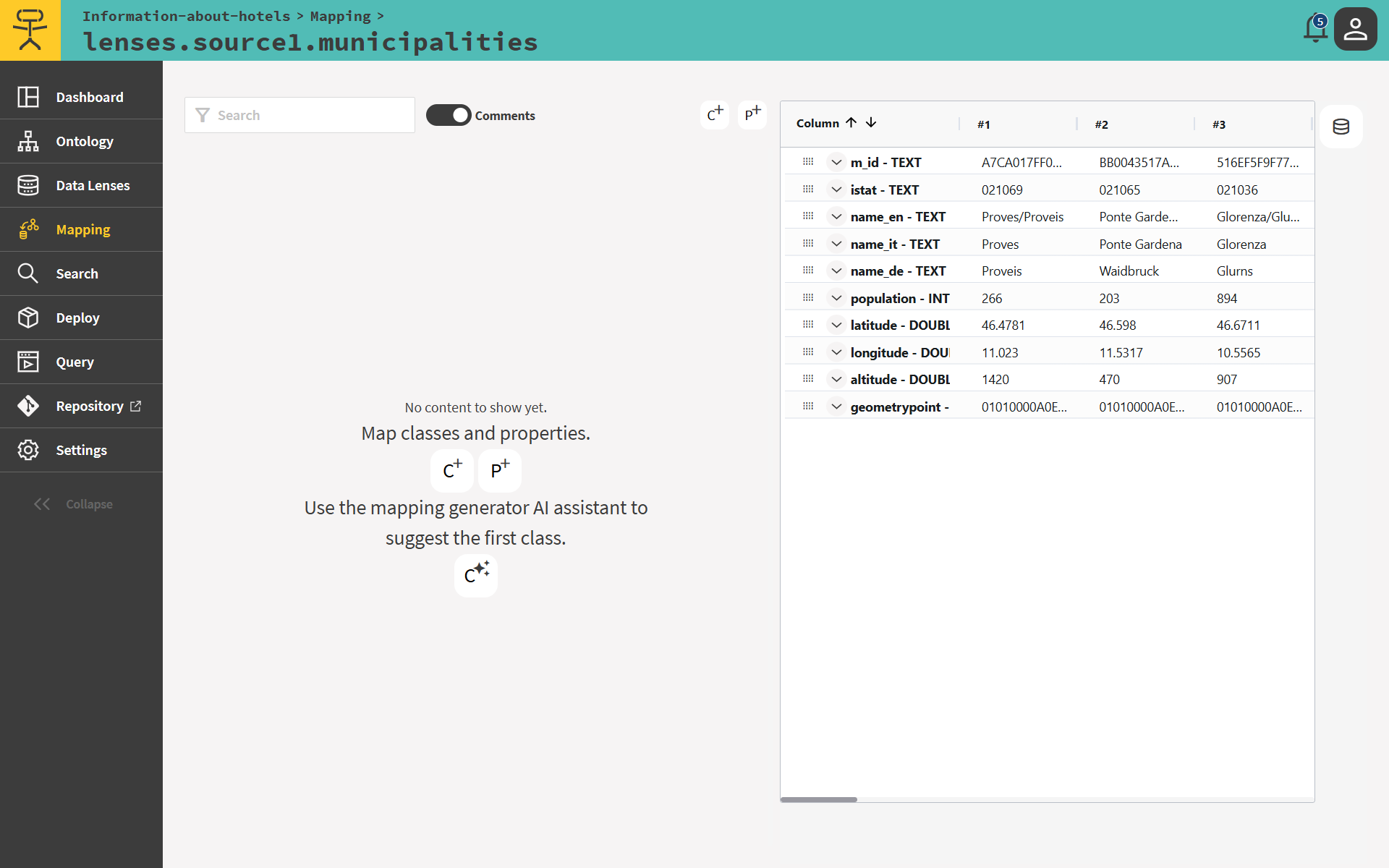
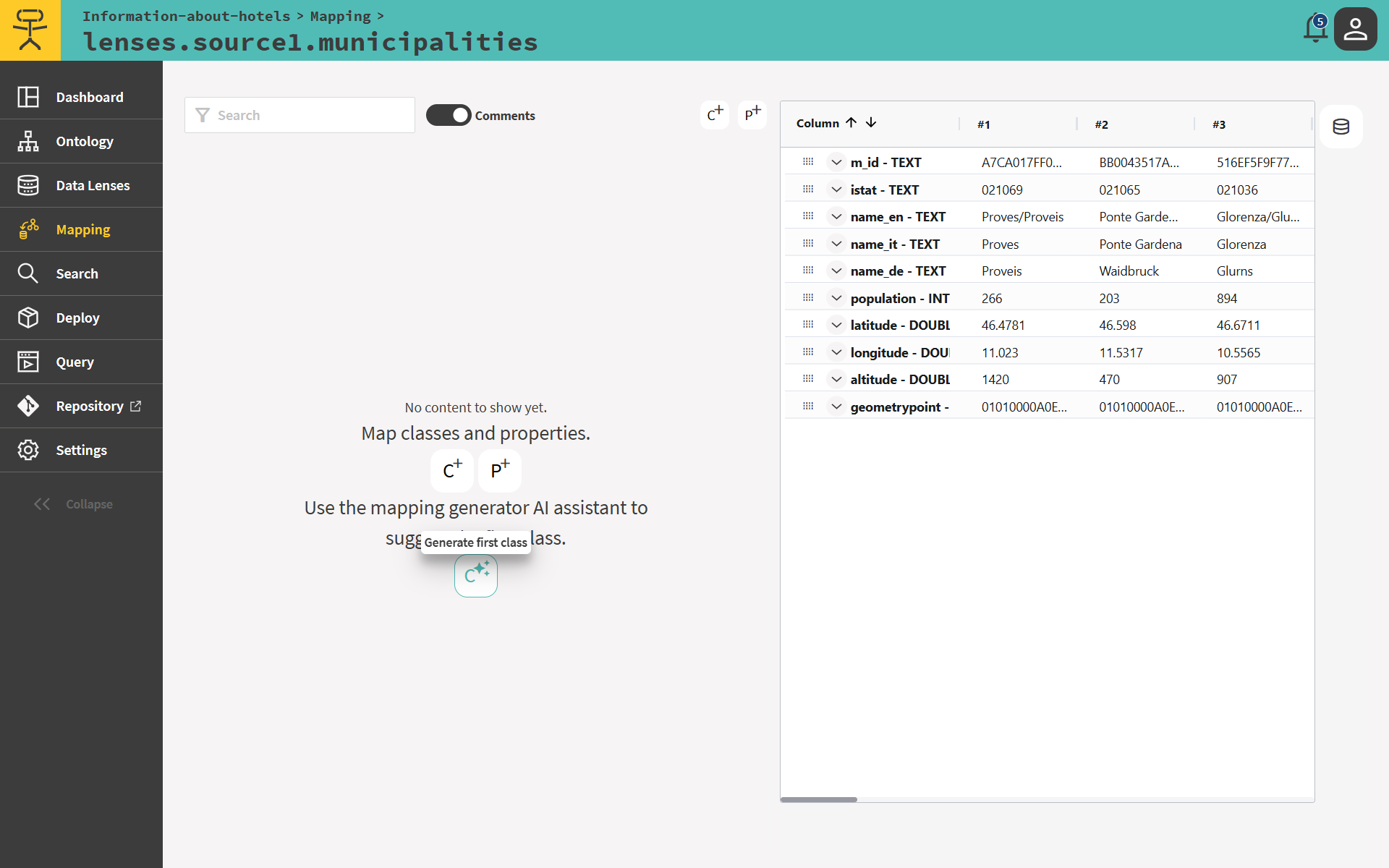
Click on the AI button.
The AI service analyses the table and returns a ranked list of candidate classes:
The score is a confidence value between 0 and 1 - use it as a guide, but always review the candidates and accept the one that best fits the intended semantics.
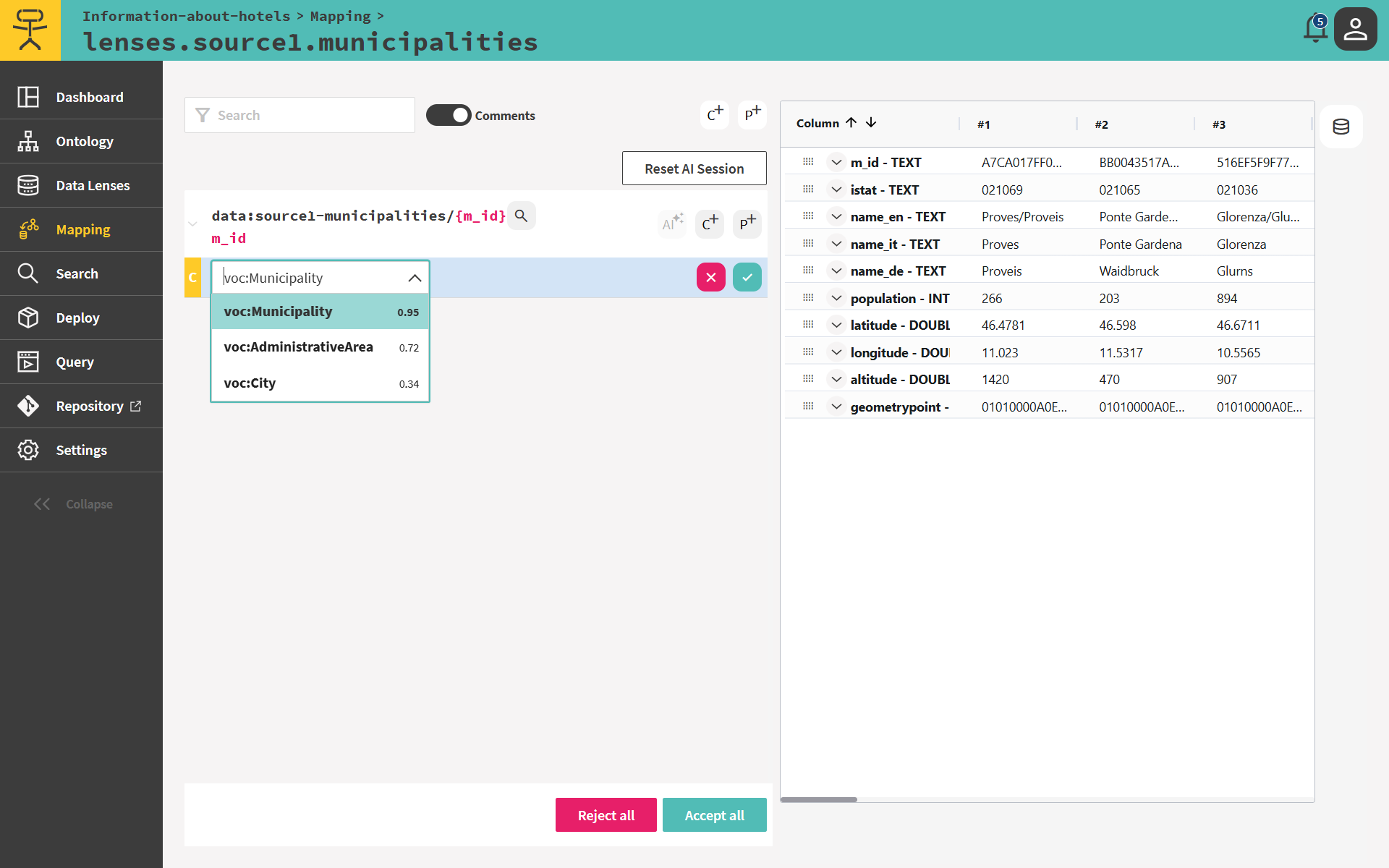
Select voc:Municipality by clicking on the green tick.
The template data:source1-municipalities/{r_id} is now an instance of voc:Municipality.
# Map hospitalities to a class
Select the lens lenses.source1.hospitality from the Mapping menu.
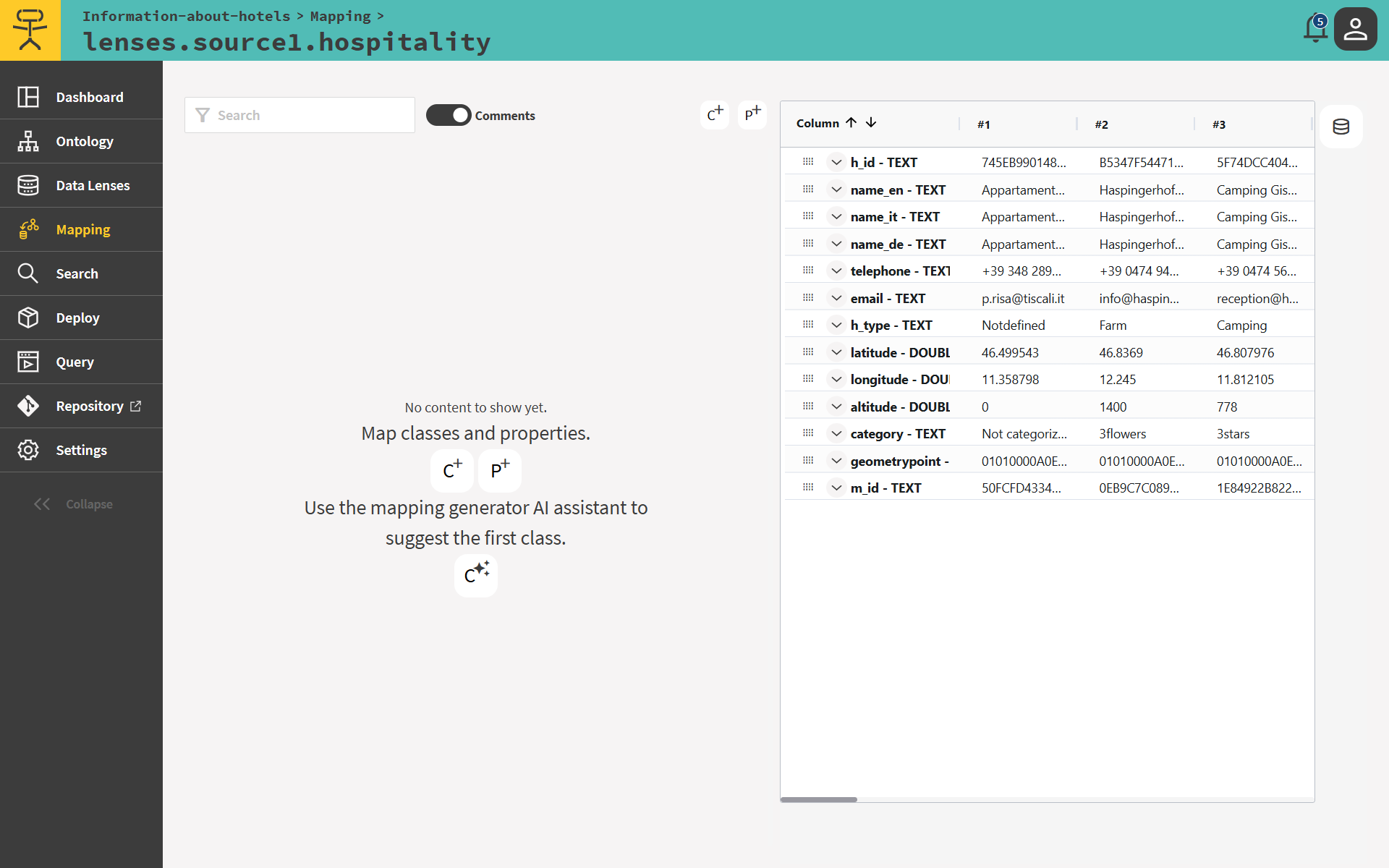
Click on the AI button.
The AI service analyses the table and returns a ranked list of candidate classes:
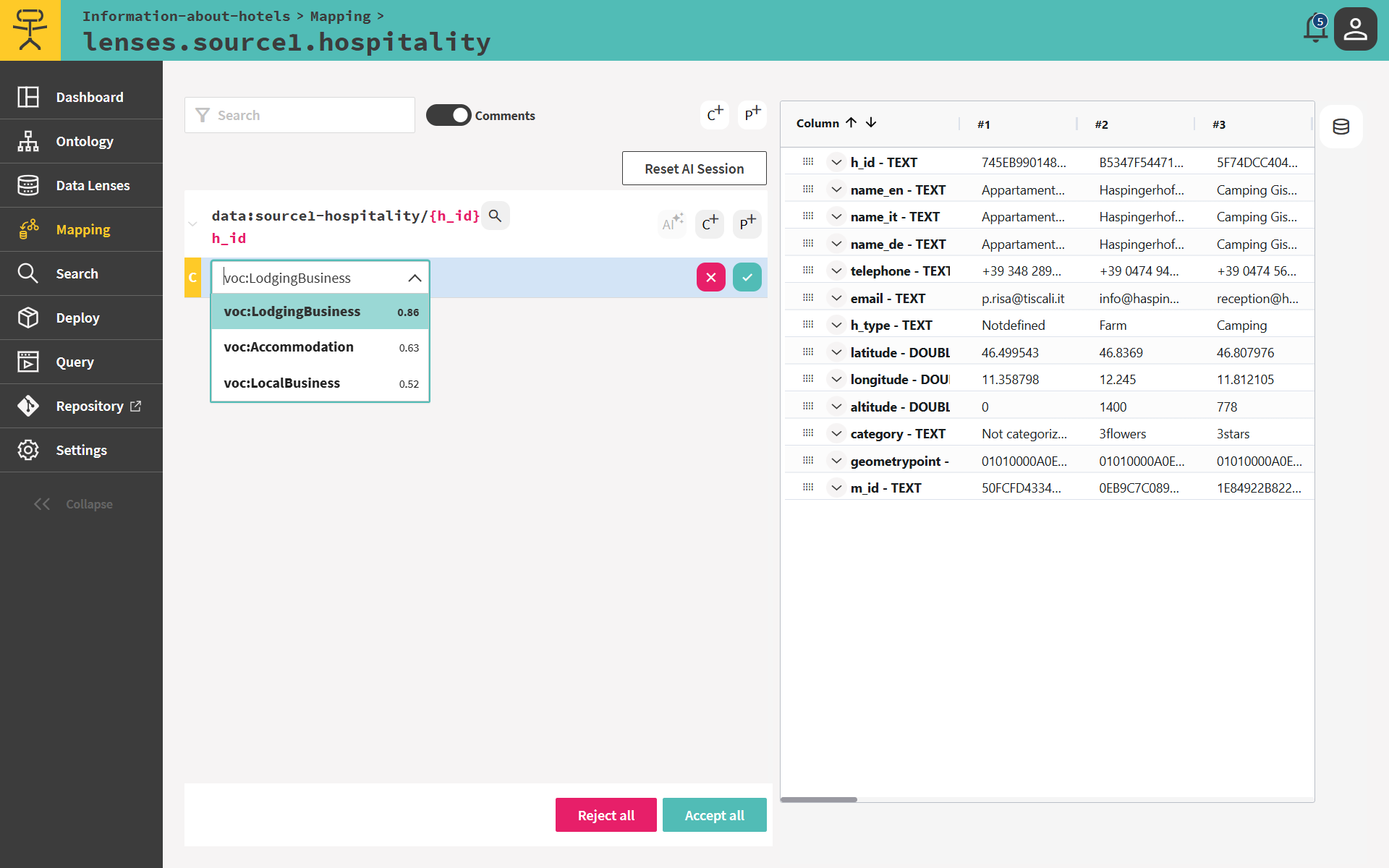
Select voc:LodgingBusiness by clicking on the green tick.
The template data:source1-hospitality/{h_id} is now an instance of voc:LodgingBusiness.
# Adding properties to the class instances (Mapping lens municipalities to data and object properties)
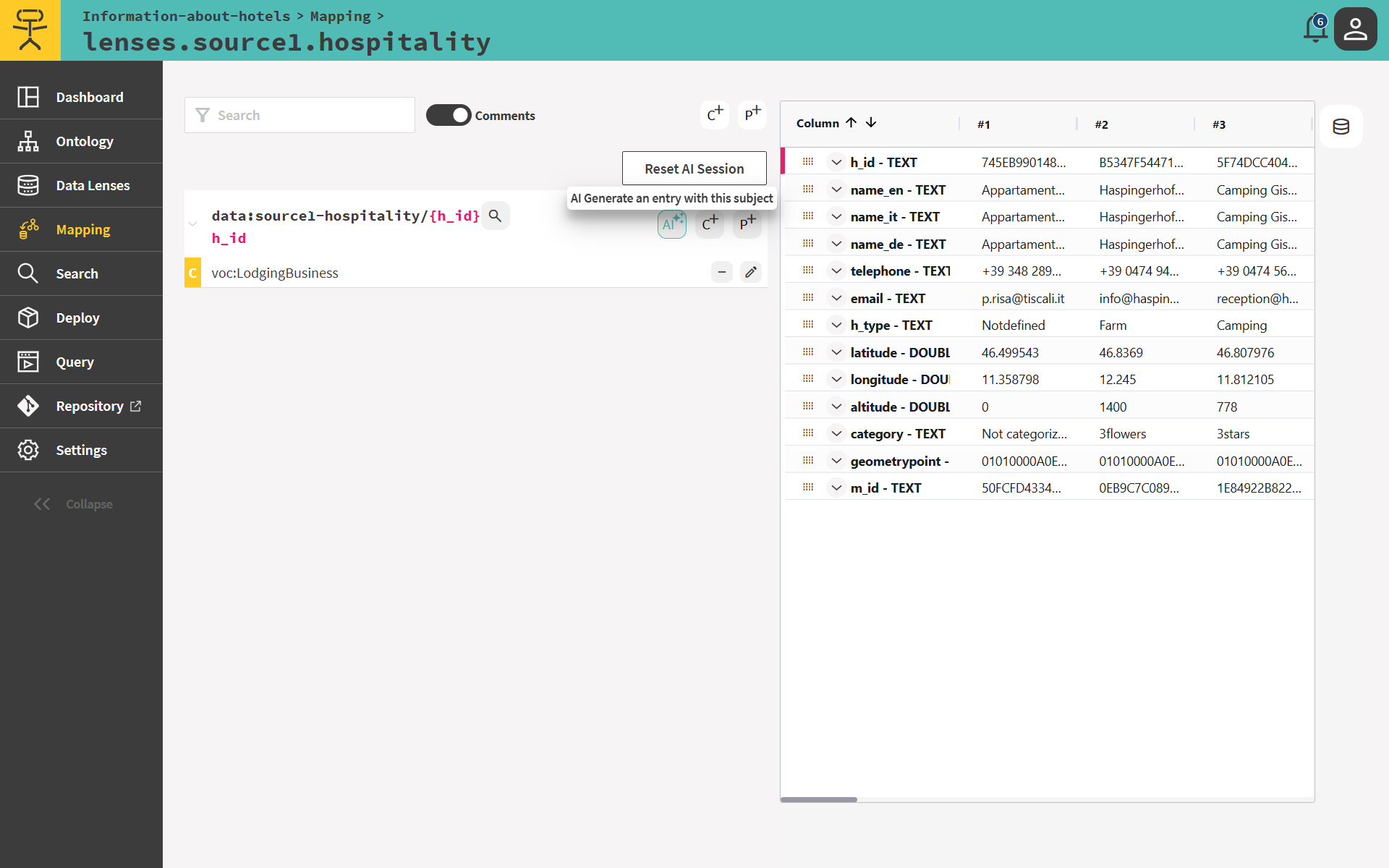
With a class assigned to both lenses, click on the AI button on the right of the template data:source1-hospitality/{h_id} once. The AI service processes the lens and streams proposals to the UI.
# Connecting municipalities to lodging businesses (Mapping a lens to an object property)
The following mapping entry (opens new window) involves two different identifiers, one about lodging businesses and one about municipalities. We have to connect these two to get the answer to our specific question.
The AI service detects that h_id is a foreign key pointing to municipalities and proposes an object property mapping entry between the two identifiers.
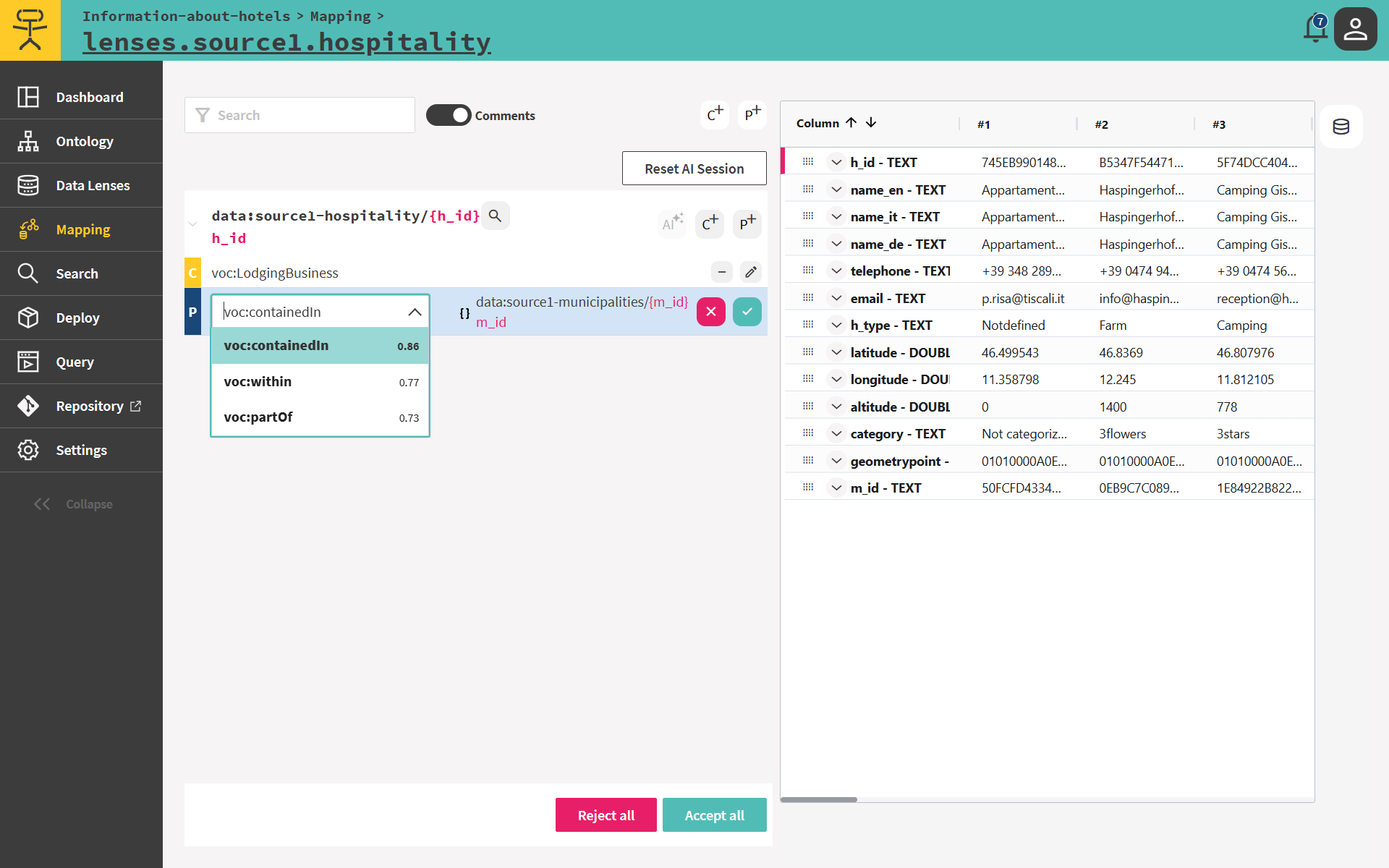
Select voc:containedIn by clicking on the green tick.
# Adding data properties to the class instances (Mapping a lens to data properties)
The AI service then proposes data property mapping entries on the remaining columns:
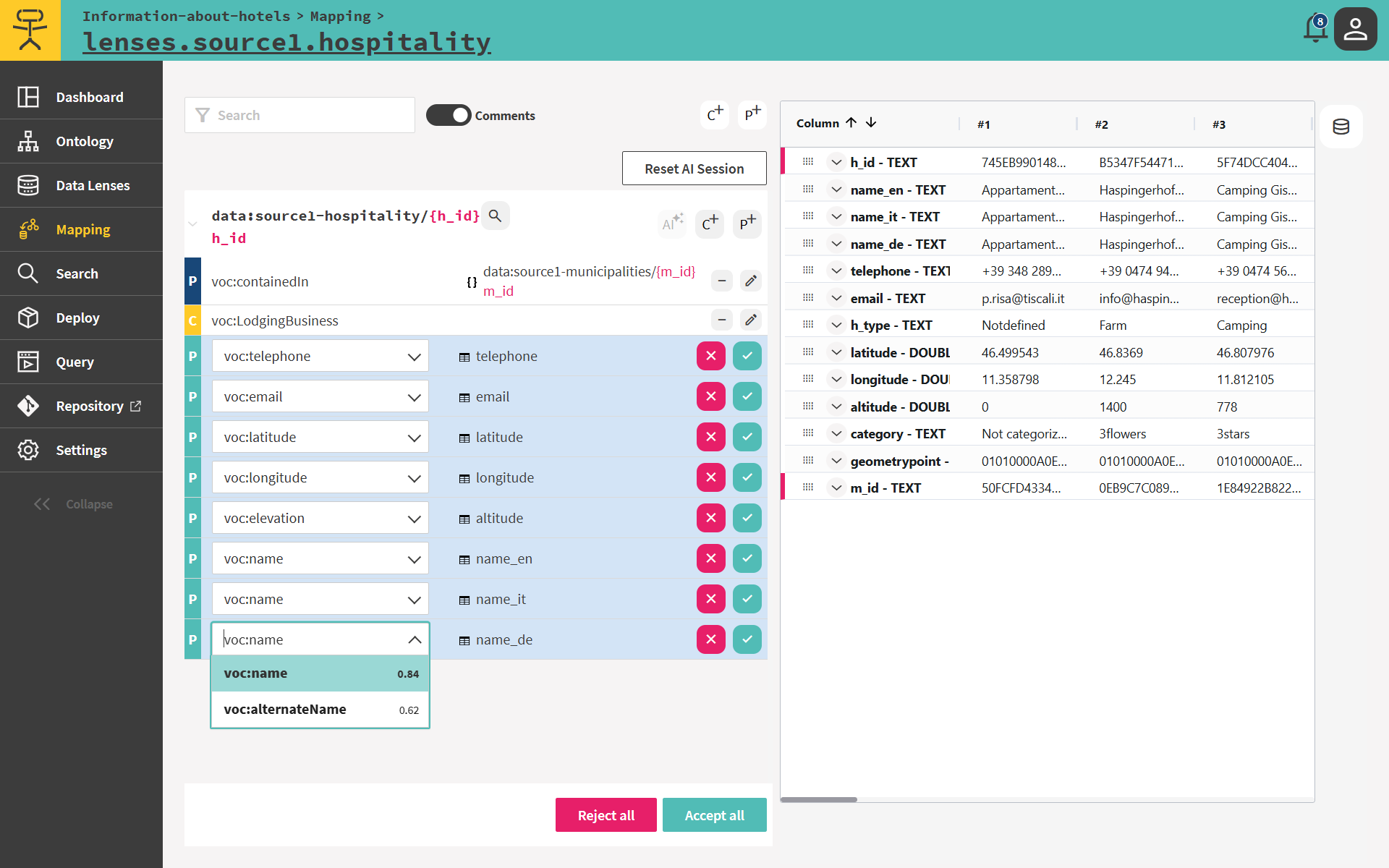
For the purpose of this quickstart reject the proposals on columns name_it and name_de by clicking on the red cross. Accept the others by clicking on Accept all at the bottom.
Important: the mapping generator is AI-based and can make mistakes. Always review every proposal before accepting - scores indicate confidence, not correctness. Results may differ from this quickstart.
# Query the Knowledge Graph using SPARQL
We can now extract key facts by testing the Knowledge Graph with SPARQL queries.
Select Query > SPARQL from the left-side navigation menu.
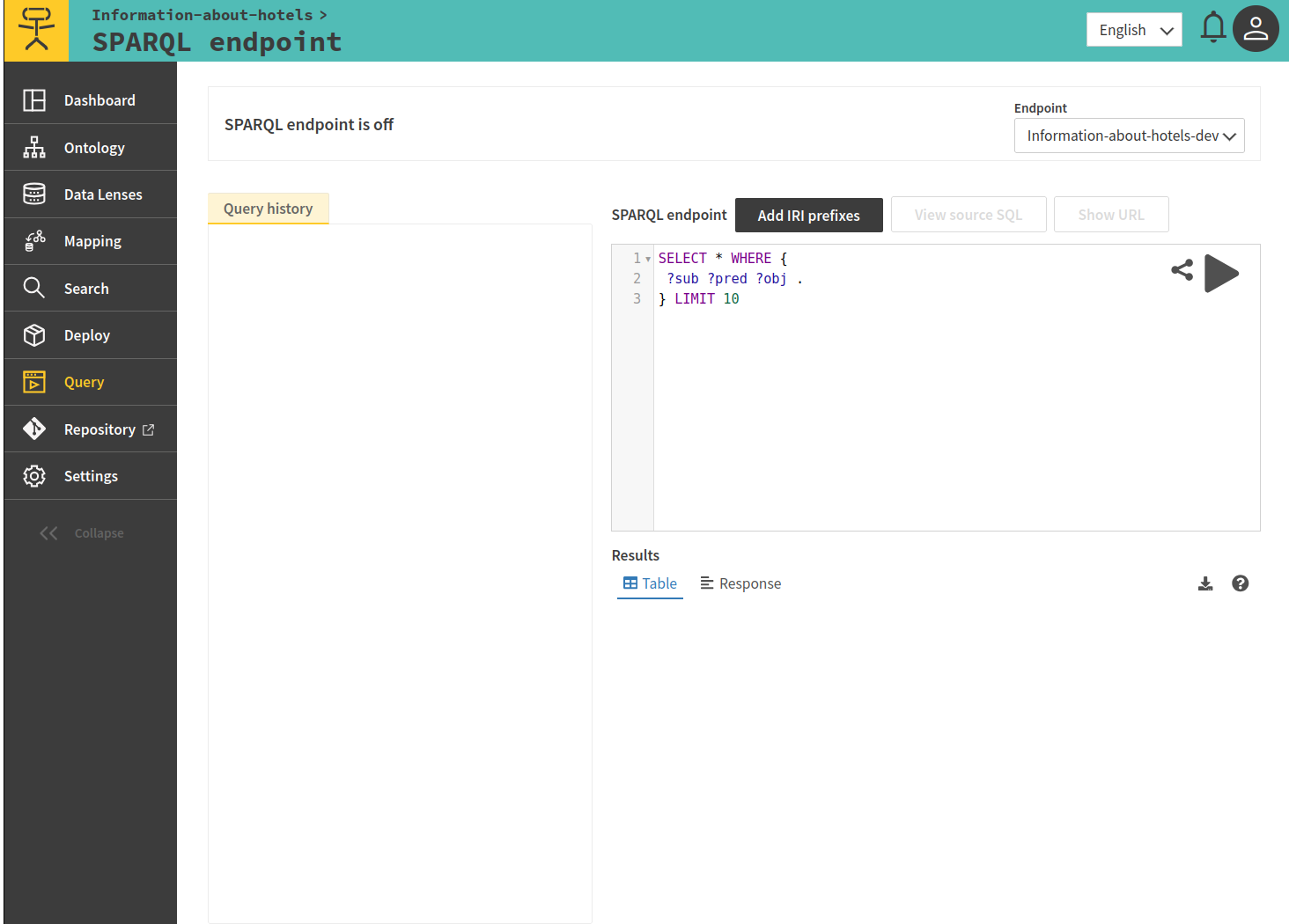
Write the query for finding the lodging businesses and click on the play button.
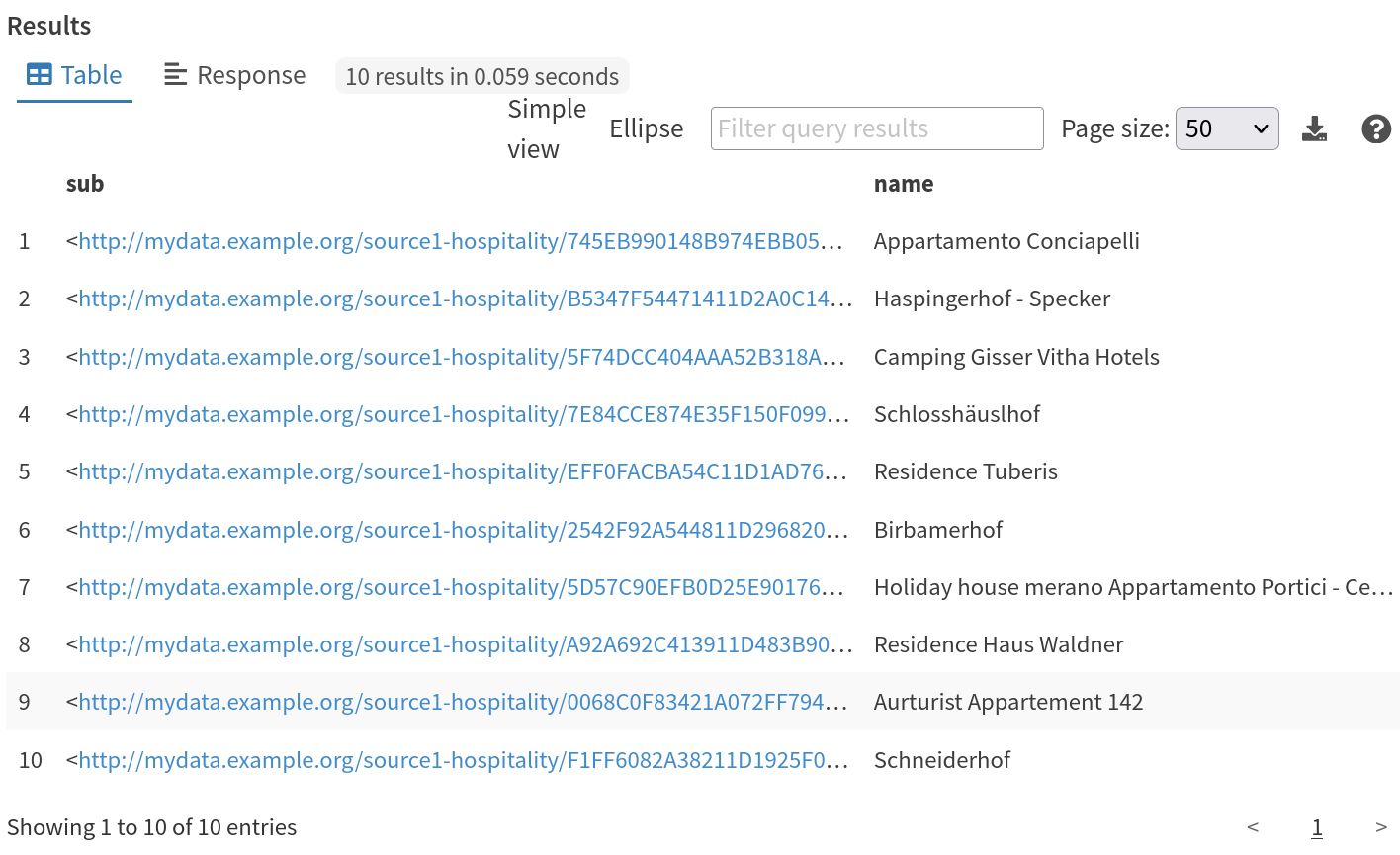
- First we query the first 10 lodging businesses by typing:
PREFIX voc: <http://vocabulary.example.org/>
SELECT * WHERE {
    ?sub a voc:LodgingBusiness;
        voc:name ?name.
}
LIMIT 10
The first 10 lodging businesses
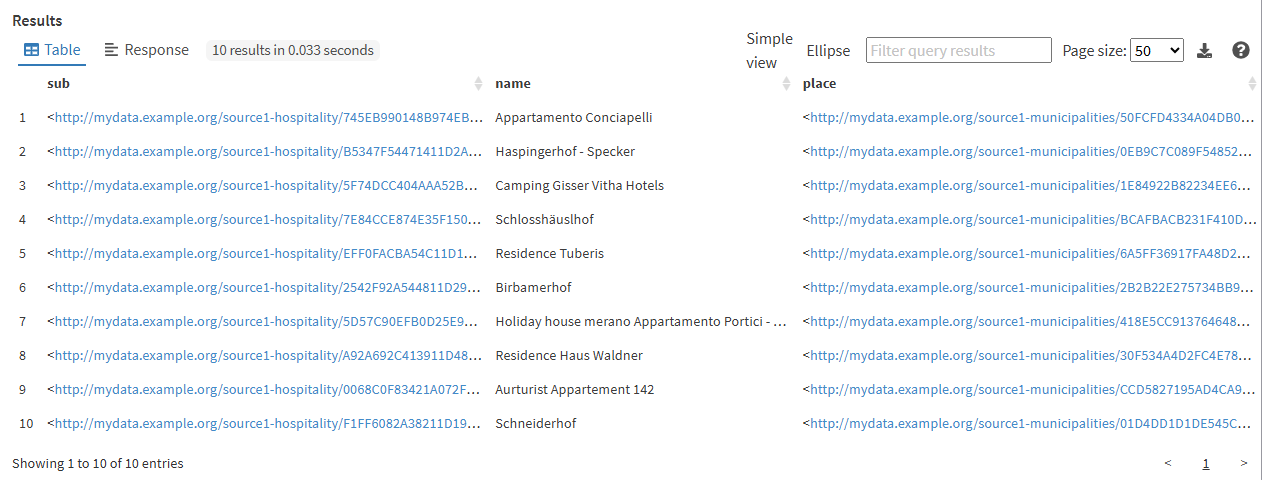
- We can get information about the municipality identifier in which such lodging business are contained in by typing:
PREFIX voc: <http://vocabulary.example.org/>
SELECT * WHERE {
    ?sub a voc:LodgingBusiness;
        voc:name ?name ;
        voc:containedIn ?place .
}
LIMIT 10
The first 10 lodging businesses with their location
- First we query the first 10 lodging businesses by typing:
# Materialize data into a graph database
Materialize in RDF files and load into a triplestore (starting from 2024.1).
Materialization to RDF is disabled by default (except for the Desktop version, where files are stored locally). See how to enable materialization with S3.
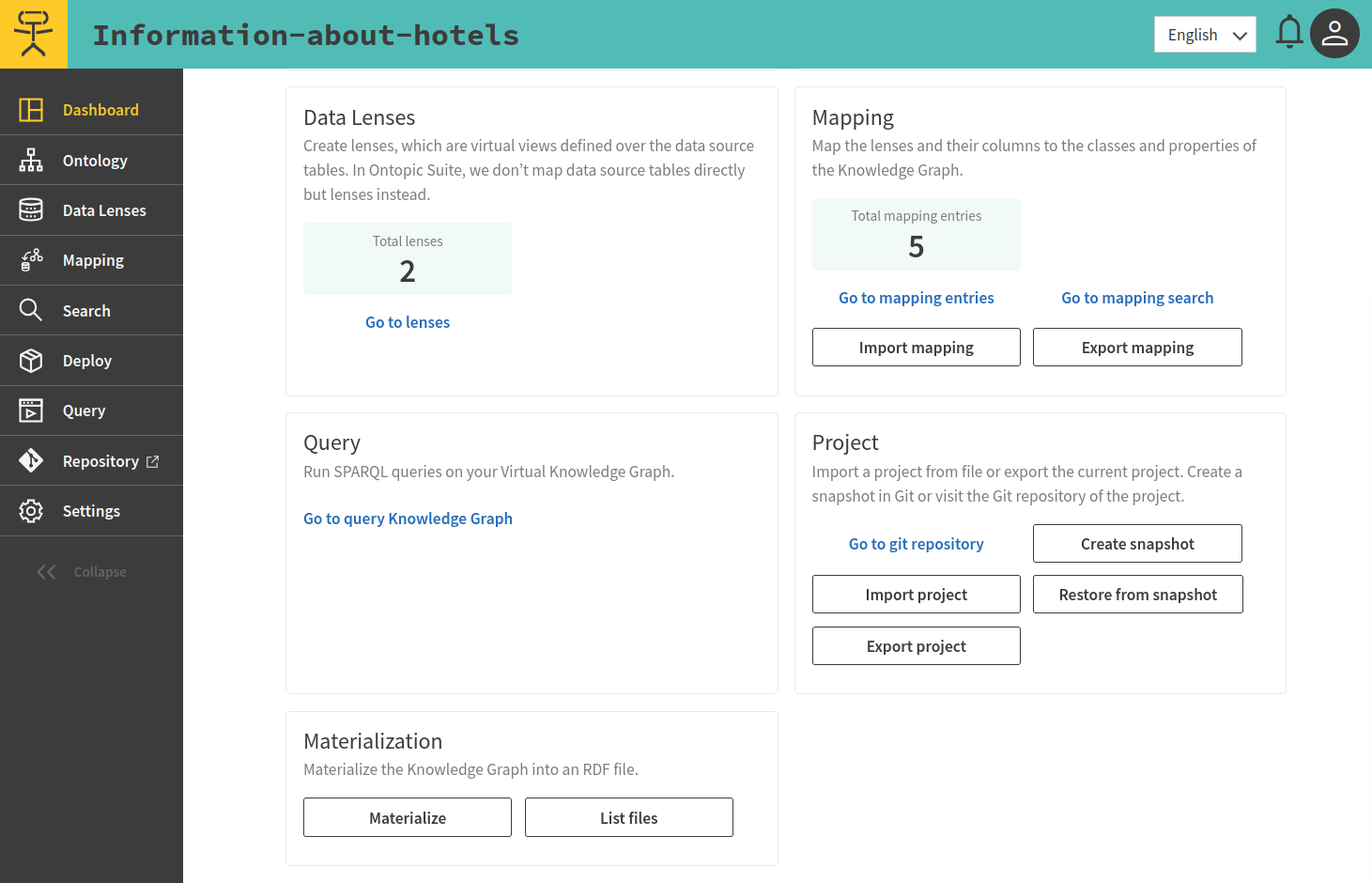
Click on Materialize to materialize the knowledge graph into an RDF file.
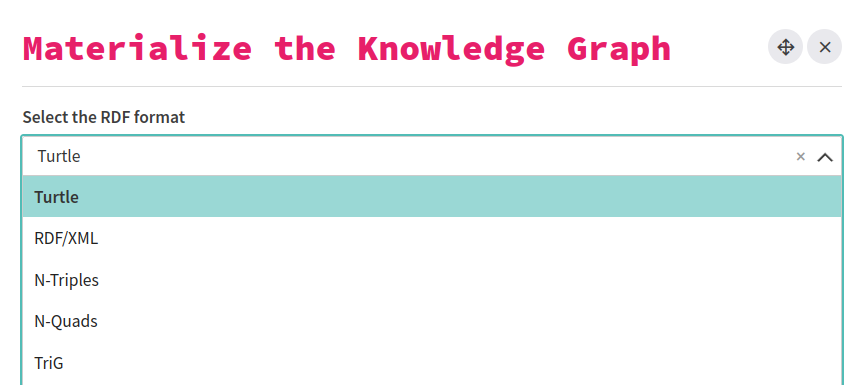
Then select the RDF format
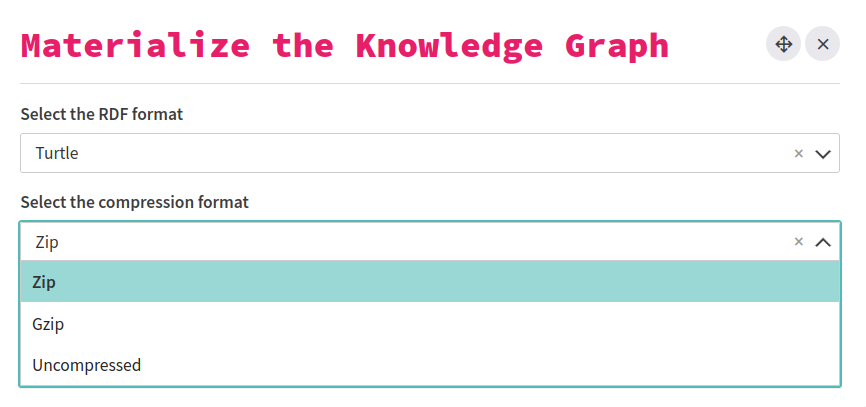
Then select the Compression format
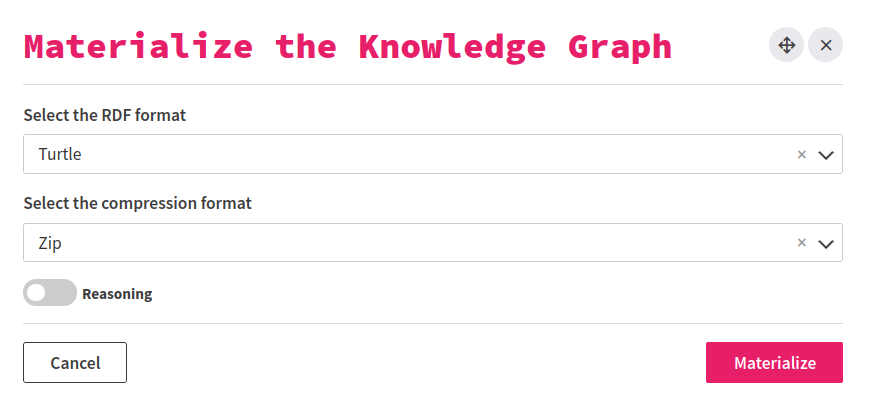
You can materialize your KG into one file in compress or uncompress format. For simplicity, we keep the default option and materialize with zip compression.
Click on Materialize, you will have all the content of KG copied to the file materialized-triples.ttl.
Now you can load this file in the triplestore of your choice, in this case, use GraphDB (opens new window). This graph database offers several ways to load files (opens new window). Here, since the file is only 200 MB, we go for the simplest option and load it directly from the UI.
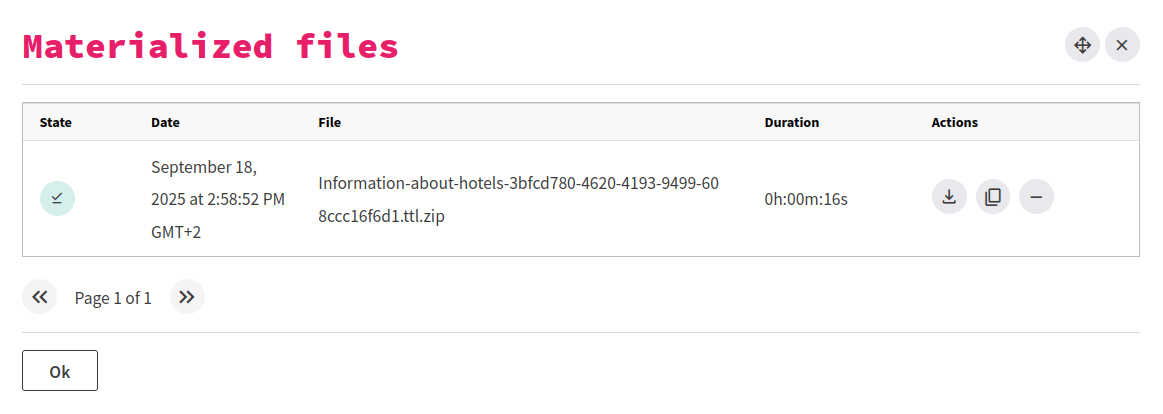
We can now see the list of materialized files by clicking on List files.
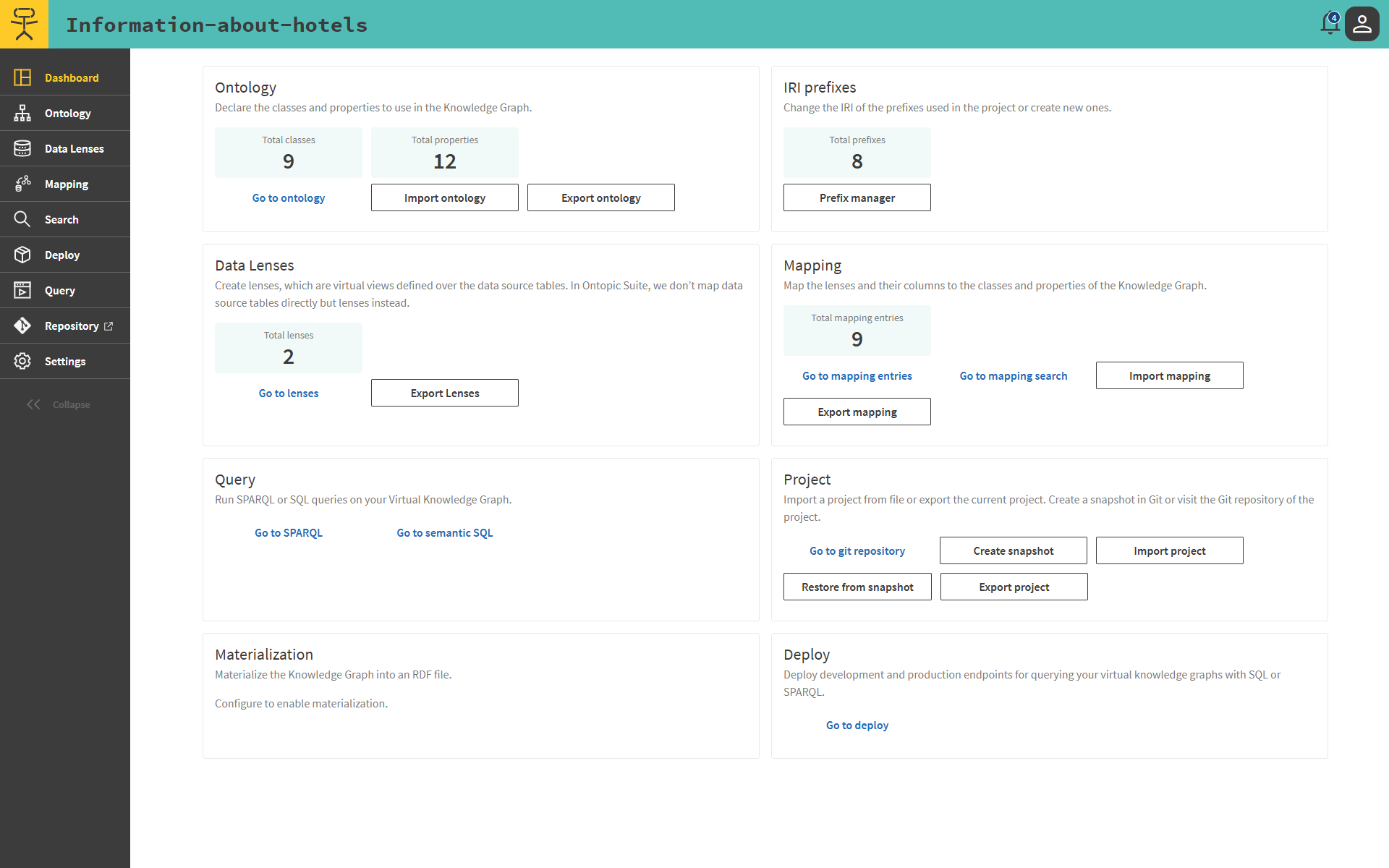
This will show a list of all materialized files. Each materialized file has three associated actions: "Export materialized file" or "Open directory", "Copy file location to clipboard", and "Delete materialized file".
# Query the Knowledge Graph using semantic SQL
We can additionally extract information from the Knowledge Graph using the semantic SQL endpoint. To more easily explore the data, we will use DBeaver (opens new window), a standard open-source SQL tool.
Connect to the Semantic SQL endpoint using DBeaver
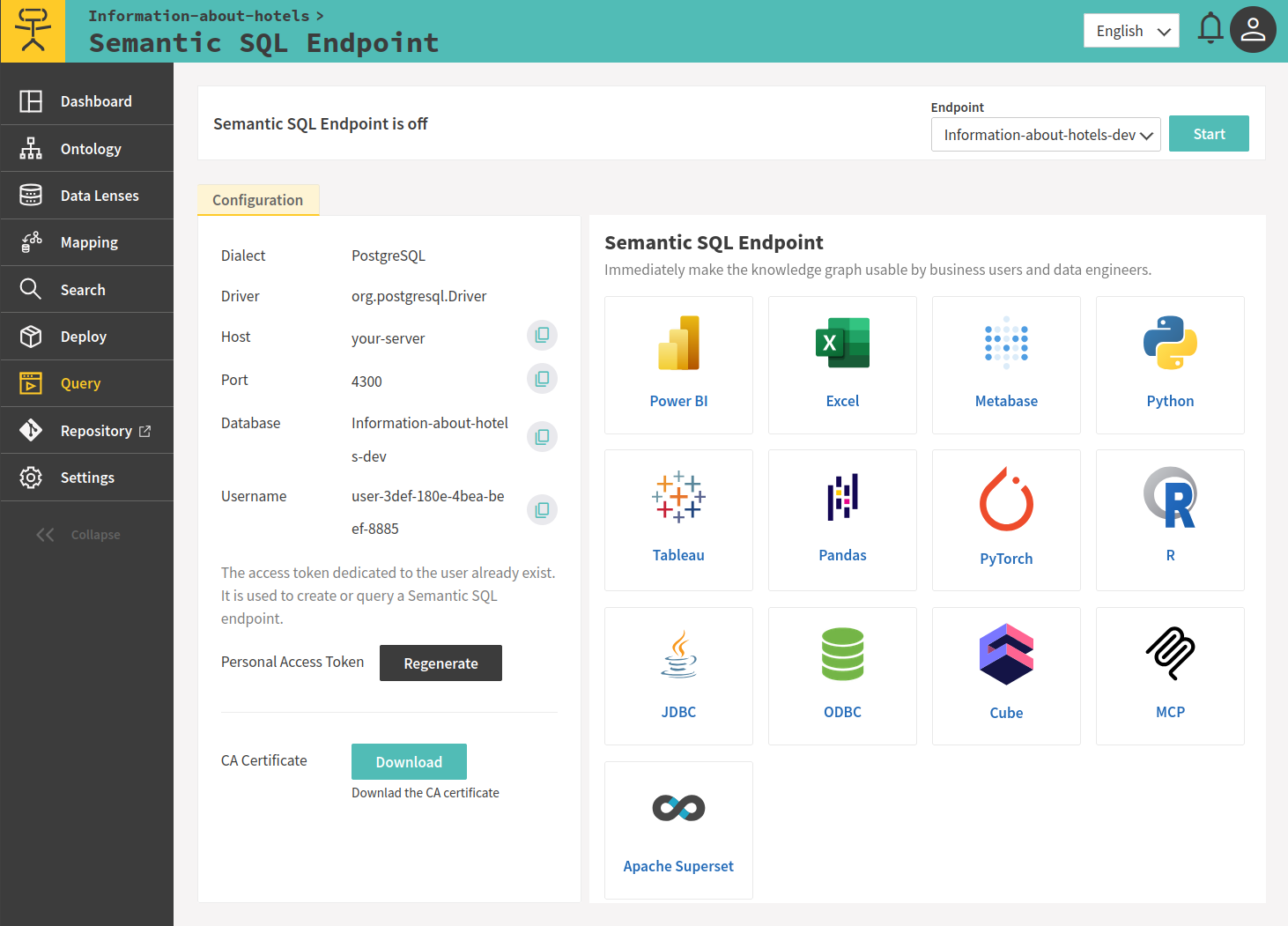
Select Query > Semantic SQL from the left-side navigation menu.
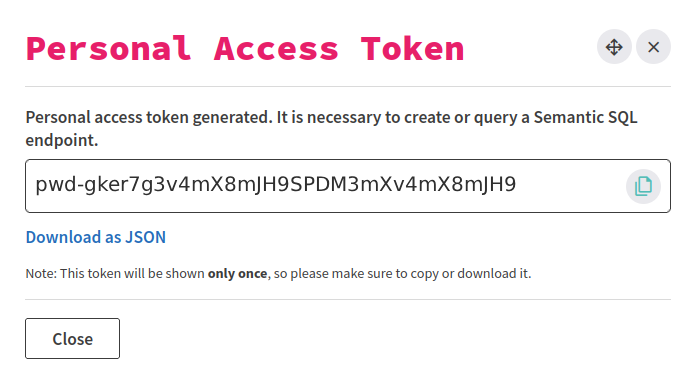
Generate a Personal Access Token by clicking the Generate button. Copy it and save it somewhere safe, as you will not be able to see it again.
Start the Semantic SQL endpoint by clicking the Start button in the top right.
On the left, you can see the connection details to connect to the Semantic SQL endpoint. You will need these details in DBeaver.
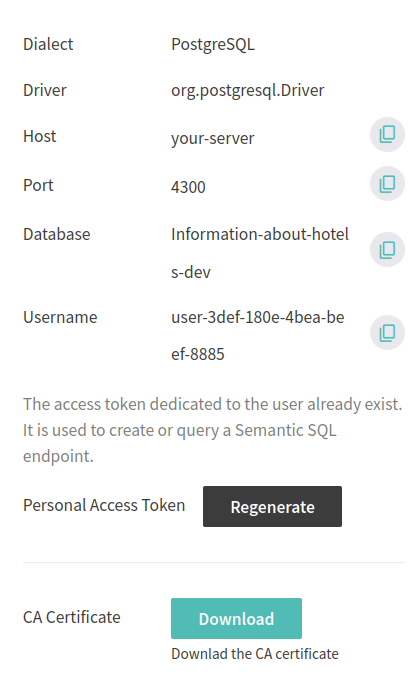
In DBeaver, go to the Database menu, select New Database Connection and choose PostgreSQL as your database type.
Fill in the connection details from Ontopic Suite, using the Personal Access Token as password. Click on Finish to save the connection.
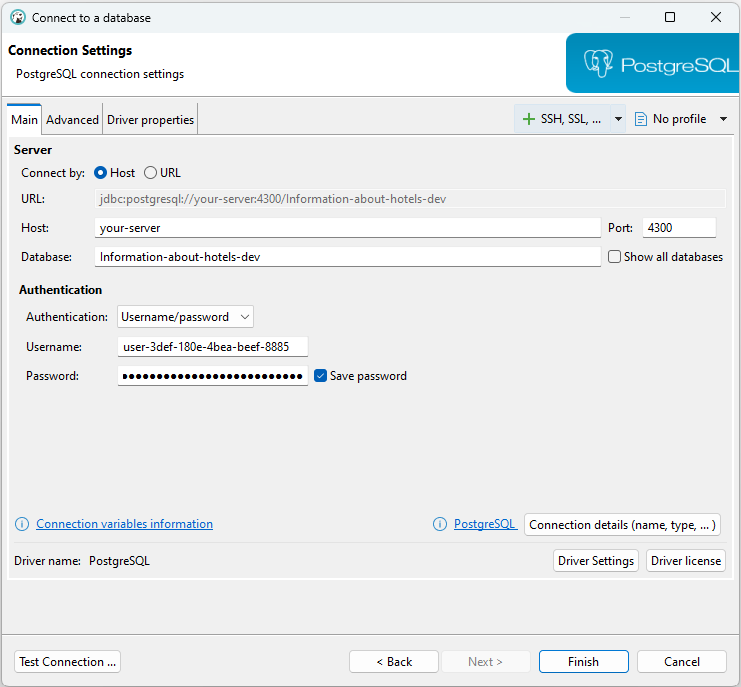
Explore the data using the DBeaver UI
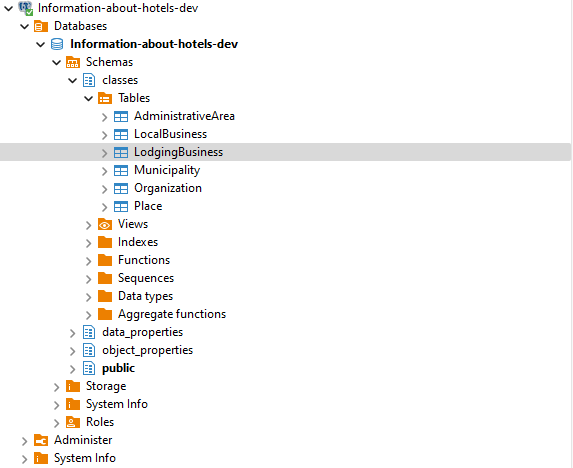
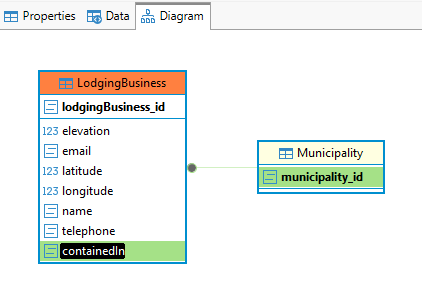
From the left side panel, expand the connection created until you see the LodgingBusiness table and click on it to see the data.
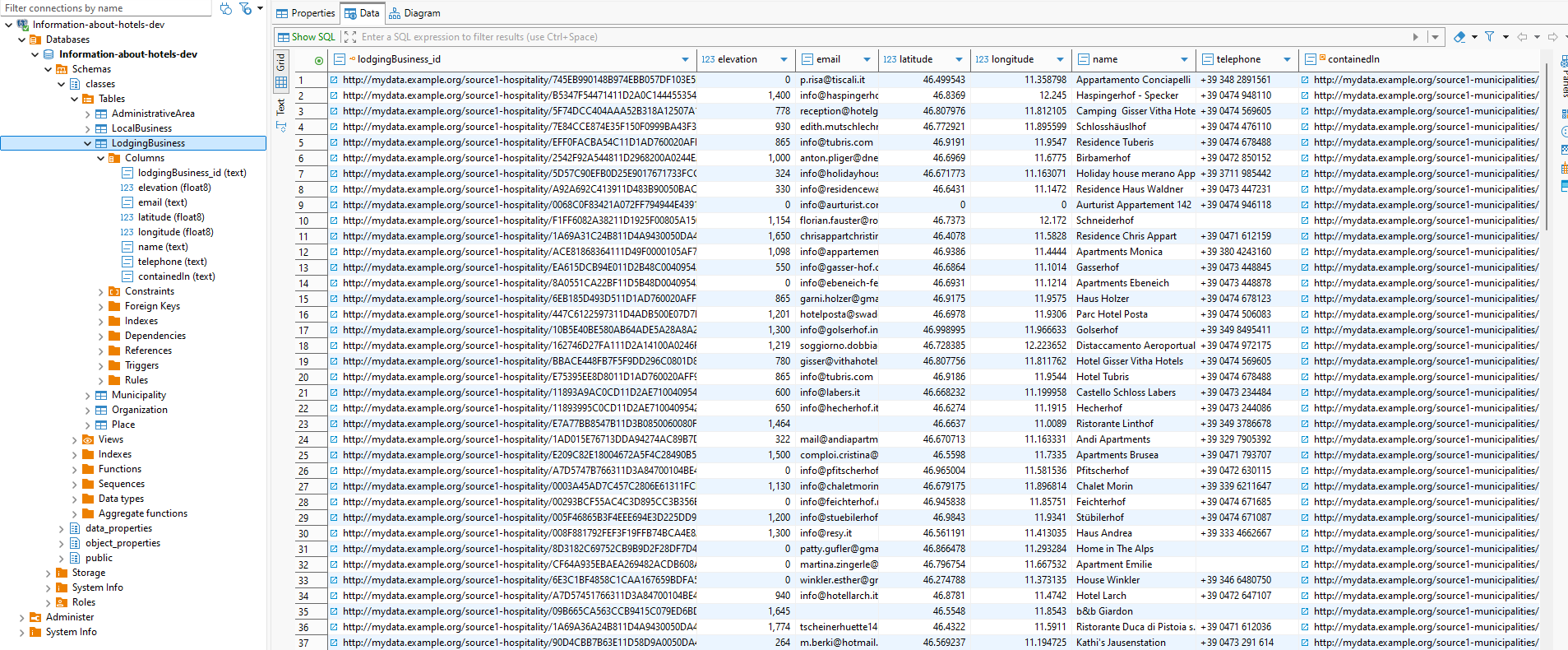
Alternatively, if you move from the Data tab to the Diagram tab, you can visualize the Entity-Relationship diagram for the data.
Query the data directly using SQL
In DBeaver, right-click on the connection name and select SQL Editor > New SQL Script. A new tab will open where you can type your SQL queries.
To run the same query defined in the SPARQL section and retrieve the first 10 lodging businesses in South Tyrol, enter the following SQL query and click on the play button.
SELECT *
FROM "classes"."LodgingBusiness"
LIMIT 10;
The first 10 lodging businesses in in South Tyrol.
